 AskRingo
- Check if a text is a scam (works today)
- What the colors mean
- Check a screenshot instead
- Block junk texts on your iPhone (app coming soon)
- Common questions
- Get help
Check if a text is a scam Works today
Takes about 30 seconds. Works on any phone or computer.
Copy the text message
Open the text in your Messages app.
iPhone: press and hold your finger on the message bubble, then tap Copy.
Android: press and hold the message, then tap the Copy icon at the top.
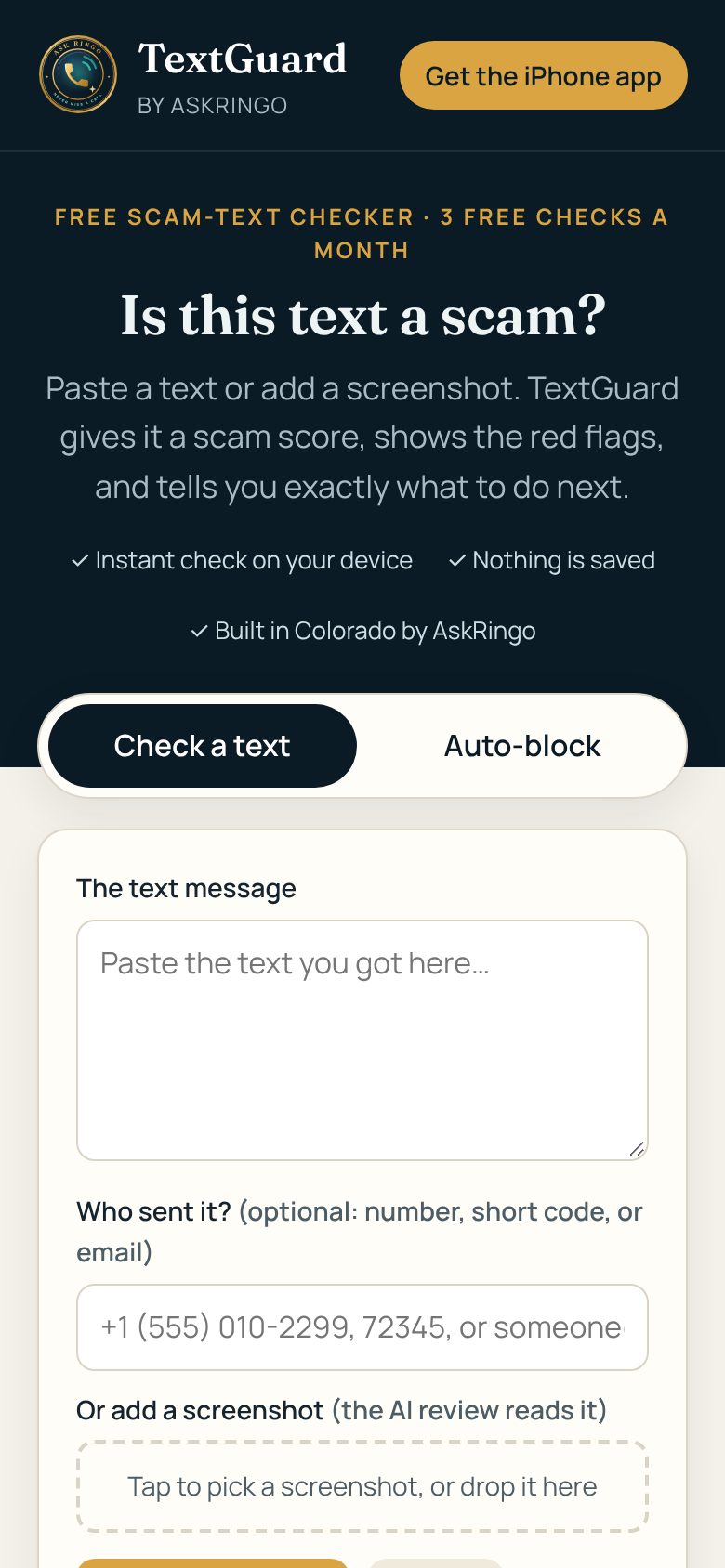
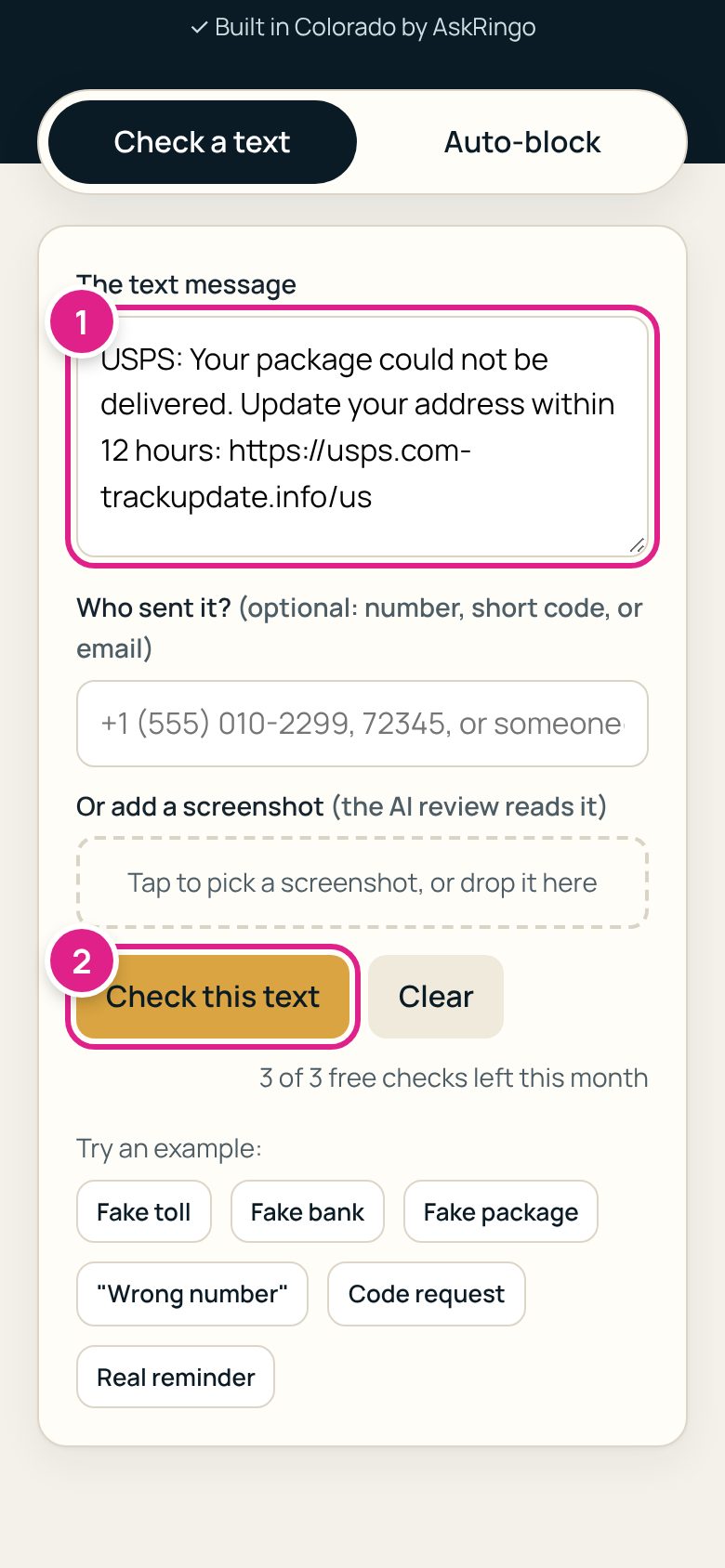
Paste it and tap Check this text
Tap the big box 1 and choose Paste. Then tap the gold Check this text button 2.
If you know who sent it, you can type the number in the "Who sent it?" box. This is optional.
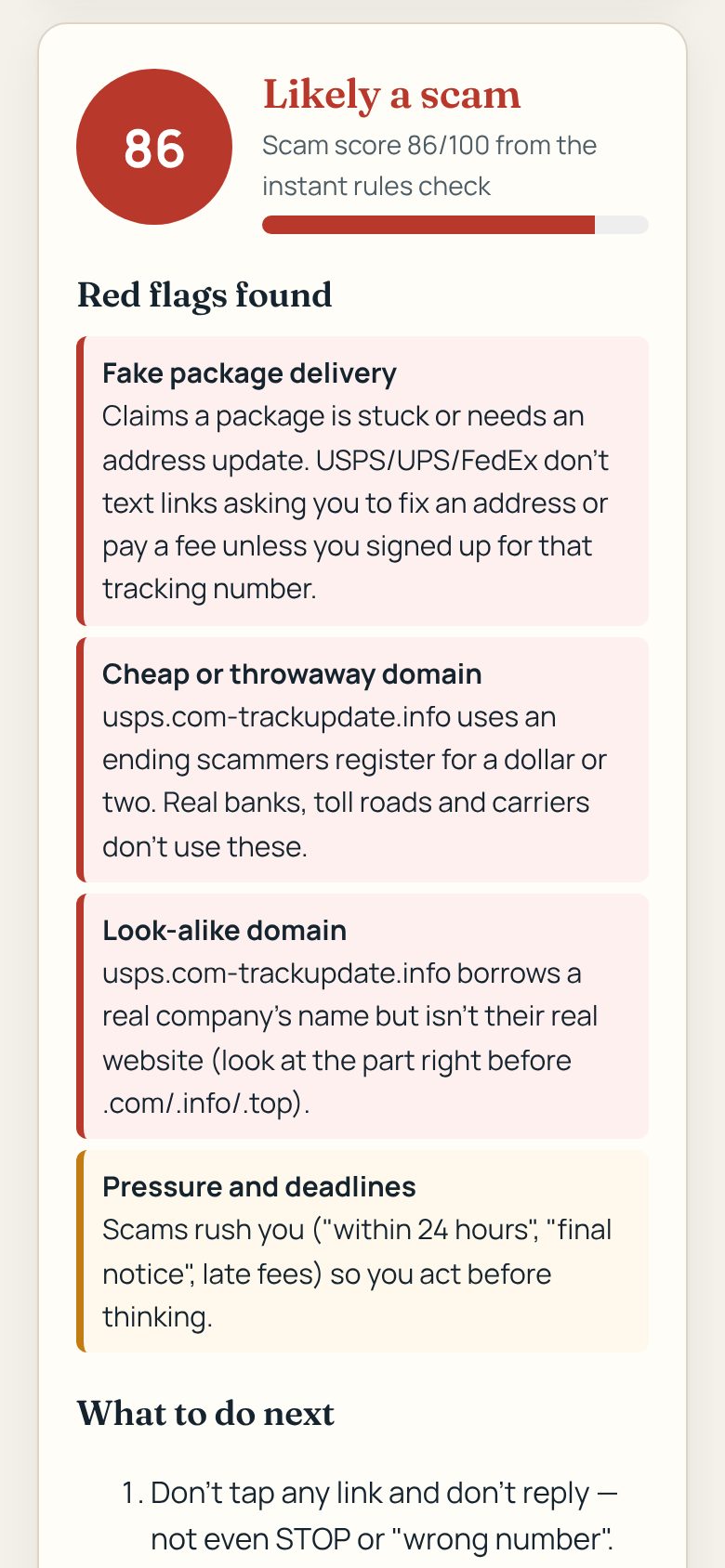
Read your answer
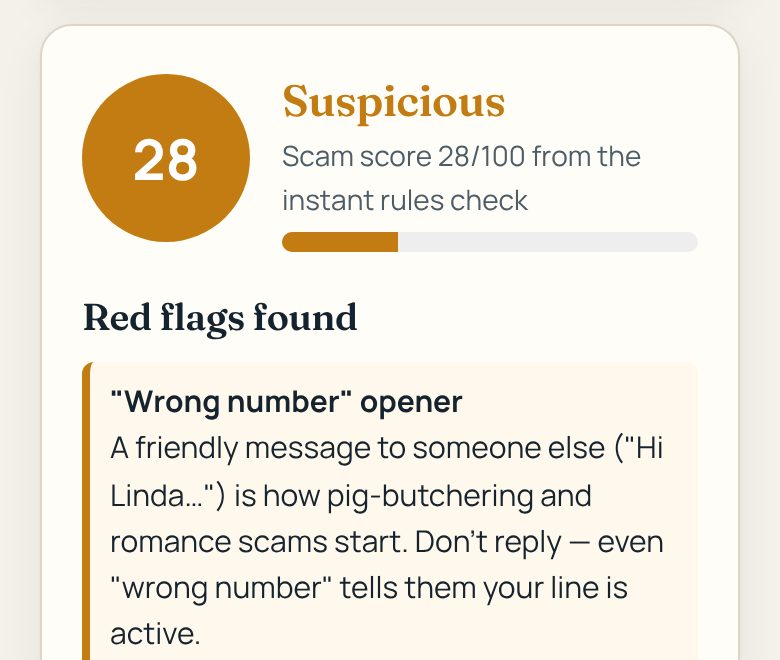
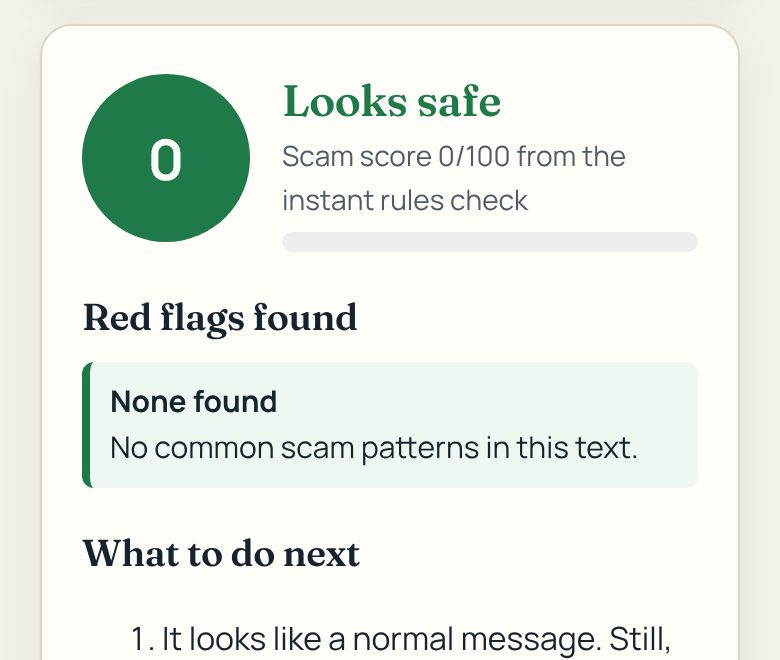
You'll see a score from 0 to 100, a color, and the red flags TextGuard found, explained in plain words.
Follow "What to do next"
Scroll down. TextGuard lists exactly what to do, like not replying and how to report the text.
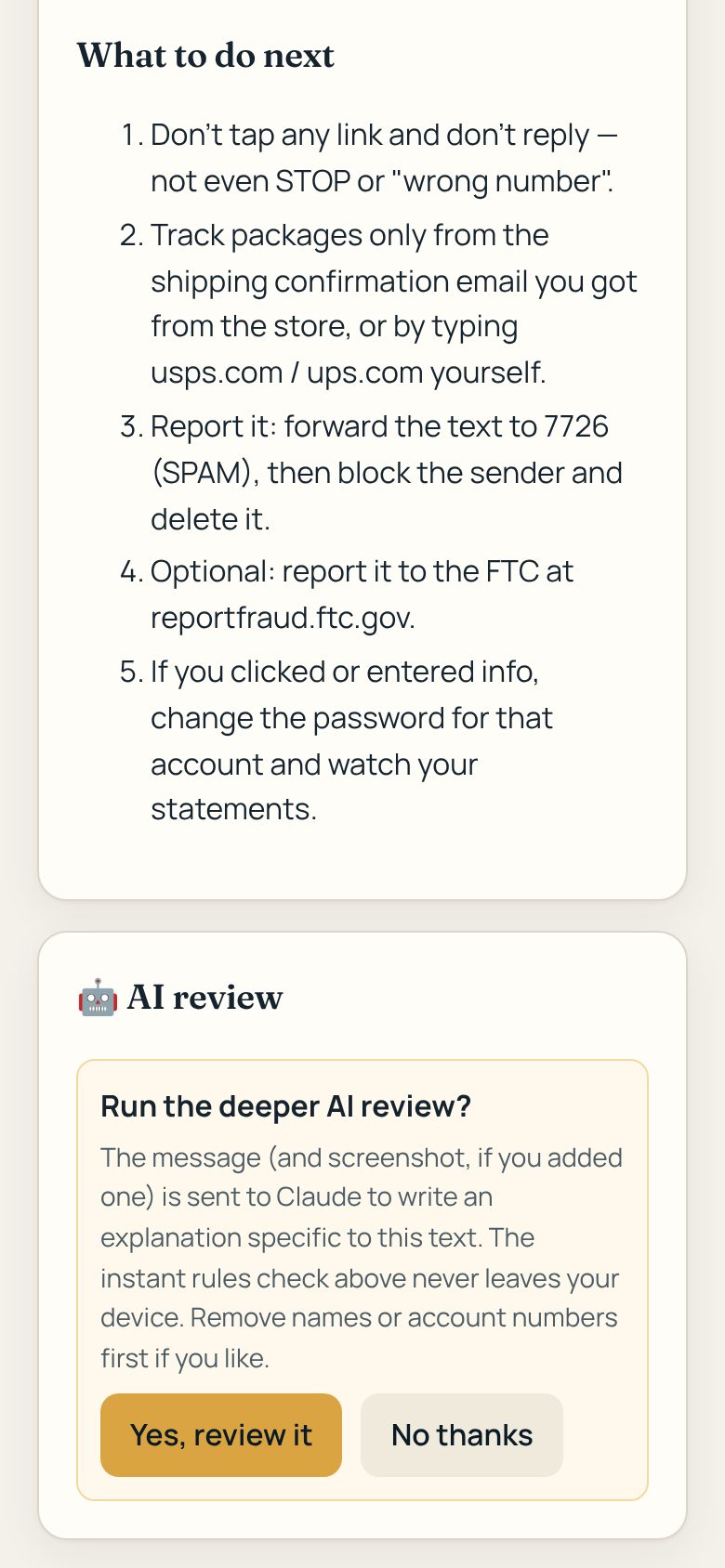
Want more detail? Tap Yes, review it under AI review for a written explanation about your exact message.
What the colors mean
The color tells you how worried to be.
Check a screenshot instead
Easier for some people than copy and paste.
Take a screenshot of the text
iPhone: press the side button and volume-up button at the same time.
Android: press the power and volume-down buttons at the same time.
Add it in TextGuard
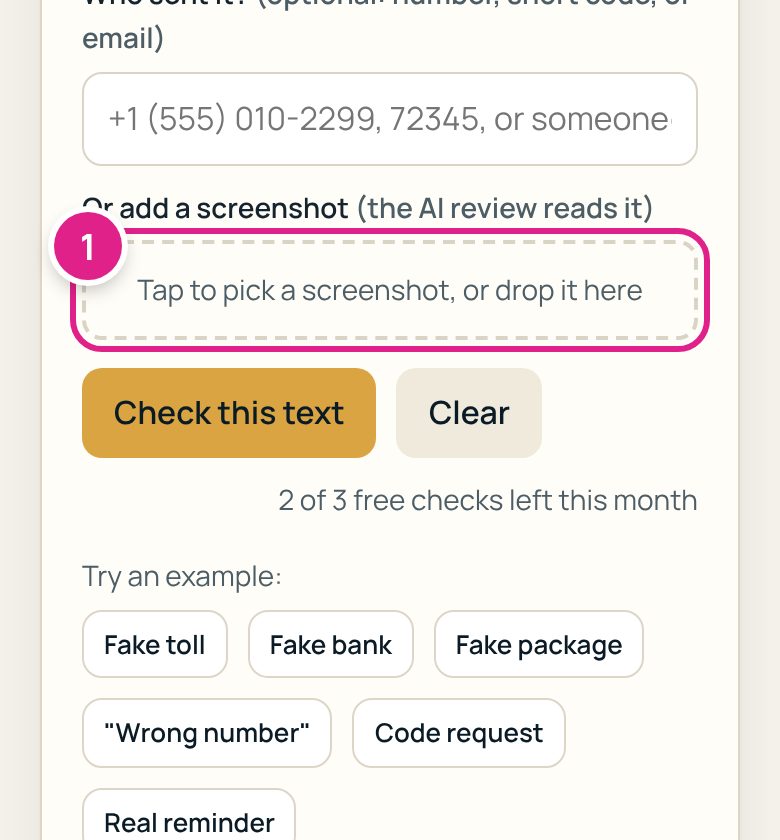
On textguard.askringo.com, tap the dotted box 1, choose your screenshot, then tap Check this text and say yes to the AI review.
Block junk texts on your iPhone App coming soon
Junk never buzzes your phone and never shows up in your inbox. The TextGuard iPhone app quietly moves scam, robo and political texts into Messages' Junk folder, with no notification. Texts from people in your contacts always come through.
You can try the blocking settings today: open TextGuard's Auto-block tab and see where texts would go.
Install TextGuard from the App Store
Search the App Store for TextGuard by AskRingo and tap Get. Open it once.
Email us and we'll tell you the day it's ready.
Turn it on (one time)
Open your iPhone's Settings app and tap through:
Tap TextGuard so it has a check mark. That's it.
Pick what to block
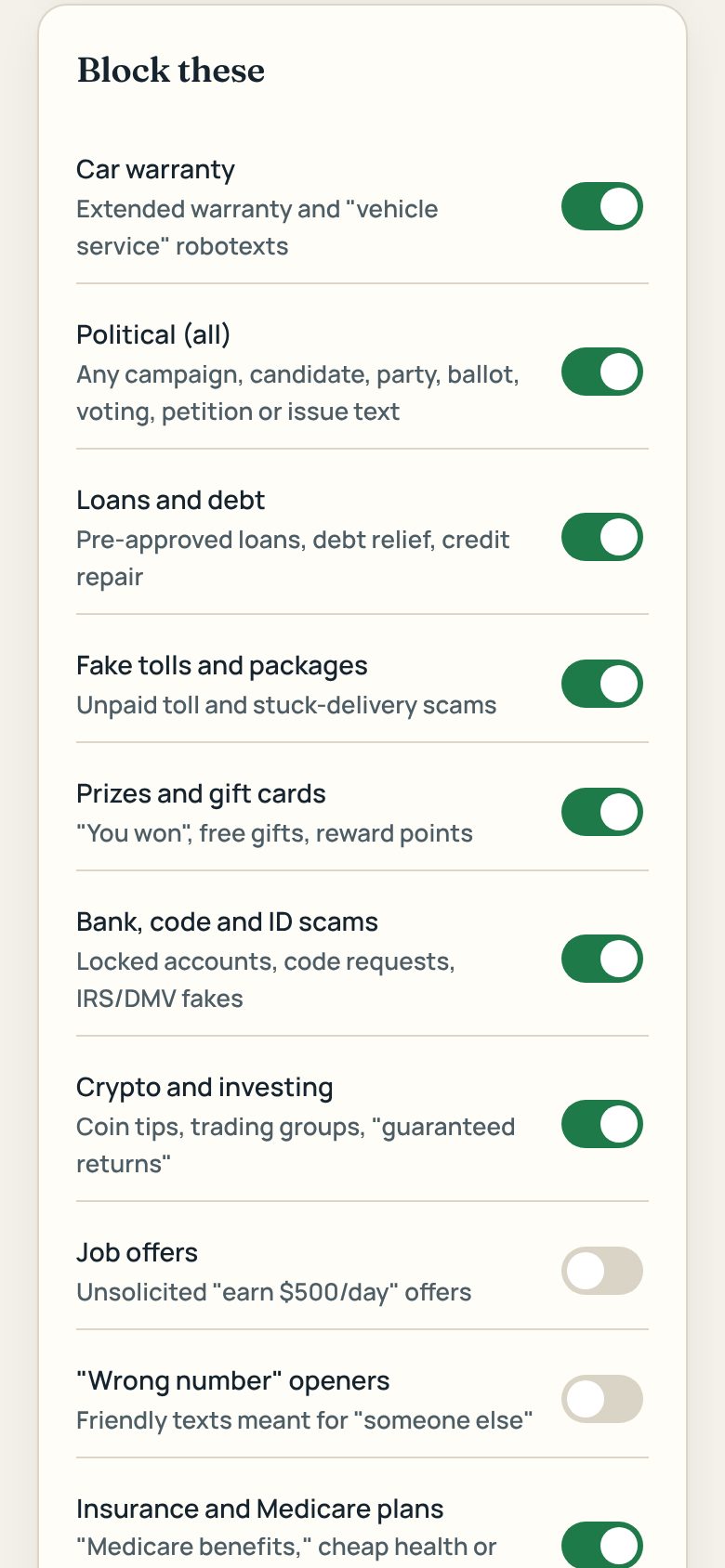
In the TextGuard app, turn on the switches for texts you never want to see, like Car warranty, Political (all) or Loans and debt. Most are already on for you.
That's it. Junk goes to the Junk folder
Blocked texts don't buzz or show a notification. To look at them, open Messages, tap Filters (top left), then Junk.
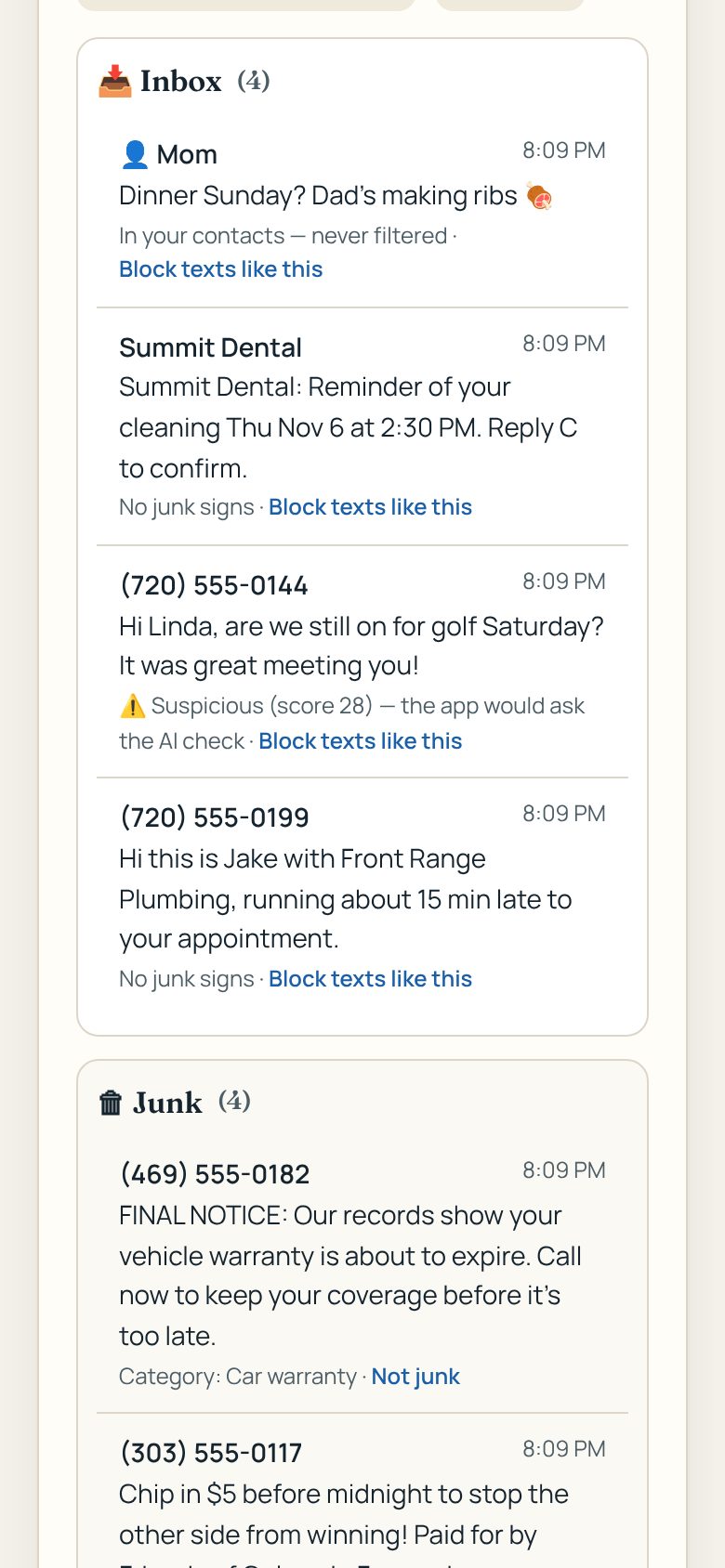
If a real text gets blocked, or junk gets through
A real text went to Junk: in TextGuard, add that sender under Always allow.
A junk text got through: copy it, open TextGuard, tap Paste a junk text, then Add rules. Texts like it will be blocked from then on.
Common questions
Is it free?
Checking texts is free for 3 checks a month. TextGuard is $5 a month (or $39 a year) for unlimited checks and junk-text blocking. TextGuard Family is $9 a month and covers up to 5 people. See plans. Paid plans start when the iPhone app launches.
Does TextGuard read all my texts or save them?
No. TextGuard only sees a text you paste in, or on iPhone, texts from numbers that aren't in your contacts. The quick check happens on your own phone. Nothing is saved.
Will I miss texts from family and friends?
No. Texts from people in your contacts are never filtered. Official election notices from your county clerk also come through.
How do I stop even more junk?
Turn on your phone company's free spam filter too. It blocks some junk on the network before it ever reaches your phone, and TextGuard catches what gets through. AT&T: the free ActiveArmor app. T-Mobile: Scam Shield (built in; the app adds more controls). Verizon: the free Call Filter app. Other carriers: search your carrier's name plus "spam filter". You can also open any junk text and tap Delete and Report Junk to stop that sender for good.
Can it delete texts on iPhone?
No. Apple doesn't allow that. Junk texts go to the Junk folder, where you can still find them.
Do I have Android?
Yes, TextGuard works on Android today. Open textguard.askringo.com in Chrome and tap Add to Android home screen (or Chrome's ⋮ menu, then Add to Home screen). After that, TextGuard shows up in Android's Share menu: in Messages, press and hold a text (or open a screenshot), tap Share, then TextGuard, and it checks it for you.
Can it delete texts on Android?
No. On Android, only your main texting app (like Google Messages) can delete or move texts. TextGuard checks texts you share with it, and the Android app planned for later will warn you about junk and scams, but it won't delete or move them unless you choose TextGuard as your main texting app.
I already clicked a link or replied. What now?
Don't panic. Change the password for any account you typed in, call your bank using the number on your card if you shared card details, and watch your statements. You can report the scam at reportfraud.ftc.gov.
Get help
A real person in Colorado will help you.